Auto Reply
Auto Reply in Bytedesk is a preset reply feature.
When a customer sends a message, the system can automatically send a predefined response based on the rules you configured in advance. It is designed to help your team respond faster to common questions, not to replace human agents.
- Robot: AI-based automated conversations
- Thread Management: Basic conversation management
In One Sentence
- One-to-one agent auto reply: configured by an agent in the agent desktop and only applies to one-to-one AGENT conversations.
- Workgroup auto reply: configured by an administrator in the management console and applies to workgroup conversations.
- Auto reply is meant to send an immediate predefined response after a customer message, not to handle the whole conversation automatically.
When It Is Useful
Auto Reply is most useful in these situations:
Handle common questions faster
For example, customers often ask about:
- business hours
- refund policy
- delivery time
- contact information
- how to reach a human agent
These are good candidates for auto replies.
Let customers know their message was received
Even if an agent has not taken over the conversation yet, customers can still receive an immediate confirmation message.
Keep response wording consistent
For pricing notes, service terms, after-sales policy, and other standard answers, auto reply helps your team keep a unified tone.
Two Ways To Configure It
1. Configure one-to-one agent auto reply in the agent desktop
This entry only works for one-to-one AGENT conversations.
It is suitable when an individual agent wants to configure replies for their own direct conversations.
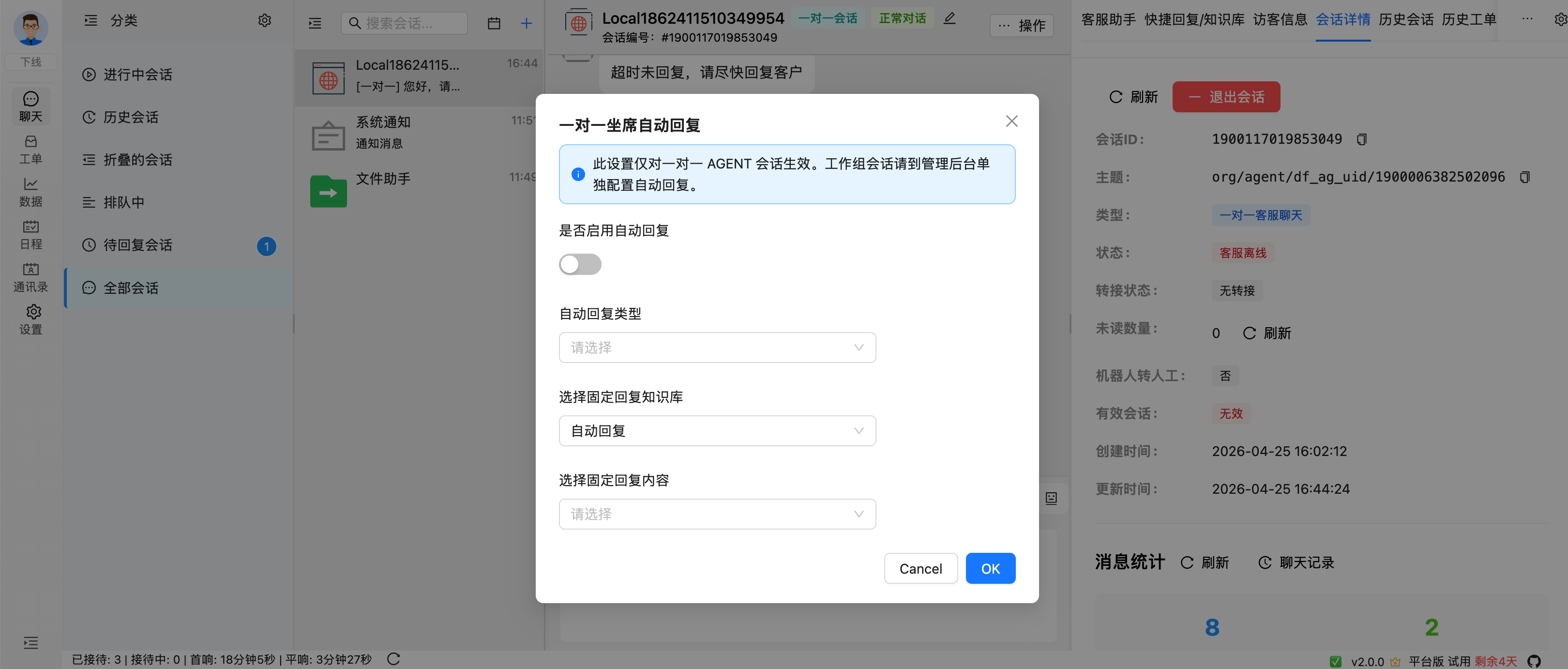
Typical use cases:
- an agent wants a personal welcome message for their own conversations
- an agent wants keyword-based replies for frequent questions in one-to-one chats
- an agent needs to turn auto reply on or off temporarily
2. Configure workgroup auto reply in the management console
If the customer is entering a workgroup conversation, auto reply should be configured in the management console instead of the agent desktop.
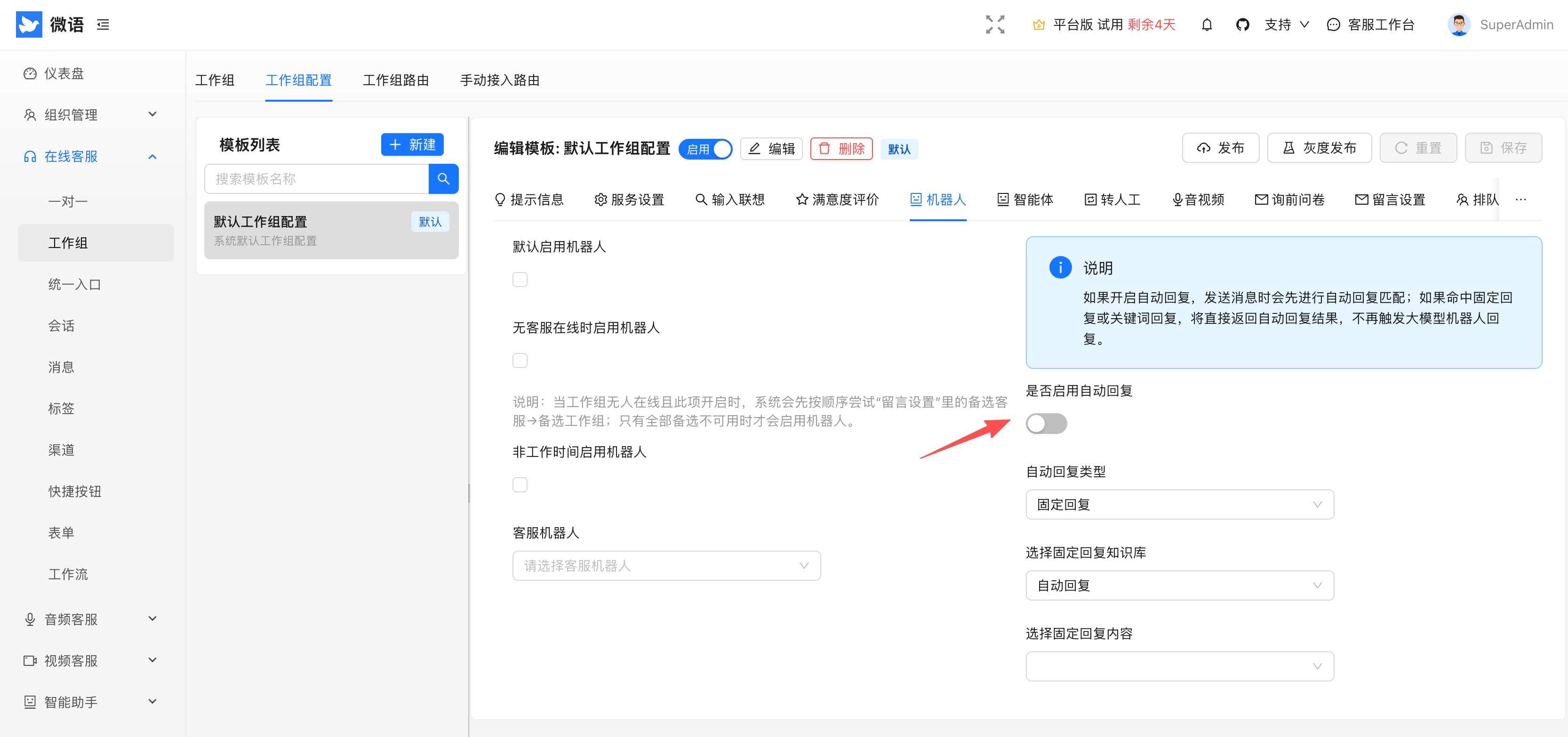
Typical use cases:
- setting a shared welcome message for a workgroup
- setting shared FAQ replies for a workgroup
- letting multiple agents use the same reply rules
When It Will Trigger
Auto Reply does not send messages in every case. Based on the current implementation, it mainly works under the following conditions:
The conversation type must be applicable
- one-to-one customer service conversations can trigger it
- workgroup customer service conversations can trigger it
- unrelated conversation types usually do not trigger it
The message must come from the customer
Auto Reply is mainly triggered by customer messages.
Messages sent by agents or system-generated messages usually do not trigger auto reply.
The message type must be supported
Common supported message types currently include:
- text
- image
- file
- audio
- video
In practice:
- keyword auto reply is mainly intended for text messages
- fixed reply is better for general-purpose instant replies
Supported Auto Reply Types
From a user perspective, you can think of the current feature as two main modes:
Fixed Reply
A fixed reply means that once the customer sends a message, the system sends the predefined content directly.
Good for:
- welcome messages
- service instructions
- contact details
- standard notices
Example:
Hello, we have received your message and will get back to you as soon as possible.
Keyword Auto Reply
Keyword auto reply means the system only sends a reply when the customer's message matches configured keywords.
Good for:
- pricing questions
- refund policy
- after-sales process
- invoice information
Example:
- customer sends: price
- system replies: Please refer to the product page for the latest price. If you need a bulk quote, please leave your contact information.
How To Choose The Right Entry
If you are not sure where to configure it, use this rule:
Choose one-to-one agent auto reply
Use this when:
- you are an agent and only want it to affect your own conversations
- you only want it to work in one-to-one AGENT chats
- you need to adjust your own replies at any time
Choose workgroup auto reply
Use this when:
- the whole workgroup should use one shared reply setup
- the customer enters through a workgroup instead of a designated agent
- multiple agents need the same rules
Recommended Setup Approach
Step 1: decide the goal first
Before creating many rules, decide what you want the reply to do:
- confirm that the message was received
- answer common questions automatically
- keep reply wording consistent across the team
Step 2: start with fixed replies
If you are using Auto Reply for the first time, start with 1 or 2 fixed replies.
Why:
- easy to launch
- easy to verify
- less likely to be configured incorrectly
Step 3: add keyword replies later
Once you know what customers ask most often, then add keyword replies.
For example:
- price
- invoice
- refund
- after-sales
- human agent
Writing Better Reply Text
Recommended
- keep sentences short
- state the result first, then add details
- focus on one key point per message
- make it sound like a real support reply, not a system notice
Example:
Hello, we have received your message.
If you are asking about a refund, please reply with refund. If you need a human agent, please reply with human.
Not Recommended
- too long
- too formal
- too many rules in one message
- promotional wording without solving the user's problem
Not recommended example:
Welcome to our official customer service center. We are committed to providing you with the most efficient and professional service. Please describe your issue in detail. Thank you for your understanding and support.
This kind of message looks complete, but customers often miss the key point.
Common Misunderstandings
Misunderstanding 1: Auto Reply is the same as a robot
No.
Auto Reply is rule-based preset messaging. A robot is usually meant for broader AI conversation handling.
Misunderstanding 2: If I configure it in the agent desktop, it also applies to workgroups
No.
The one-to-one agent auto reply in the agent desktop only applies to one-to-one AGENT conversations. Workgroup auto reply must be configured in the management console.
Misunderstanding 3: Once it is enabled, all messages will be handled automatically
No.
Whether a reply is sent depends on:
- the conversation type
- whether the message is sent by the customer
- whether the message type is supported
- whether the configured rule is matched
Misunderstanding 4: More rules are always better
Not necessarily.
Too many rules or overly long messages make the feature harder to maintain and harder for customers to understand.
Recommended Rollout
For most teams, this is a good rollout order:
- Set one fixed welcome reply first.
- Add 3 to 5 high-frequency keyword replies.
- Observe real customer questions for one week.
- Then decide whether more rules are needed.
FAQ
Auto Reply did not work. What should I check first?
Check these items first:
- whether you used the correct configuration entry
- whether the current conversation is one-to-one or workgroup customer service
- whether the auto reply switch is enabled
- whether the keyword rule actually matches the customer message
- whether the configuration was saved successfully
Can it also trigger on images or files?
In the current implementation, some non-text customer messages can also trigger auto reply.
However, if you use keyword auto reply, text messages are still the clearest and most reliable scenario.
Should I start with fixed reply or keyword reply?
If this is your first setup, start with fixed reply.
If you already know the most common customer questions, then add keyword replies.
Summary
The main value of Auto Reply in Bytedesk is not to replace agents. It is to help your team catch the customer's first message quickly and handle frequent, repetitive questions earlier.
Remember these two rules:
- for one-to-one conversations, configure one-to-one agent auto reply in the agent desktop
- for workgroup conversations, configure workgroup auto reply in the management console
That is the easiest way to avoid mistakes and get useful results.